TV to Laptop Screen by S-video
|
New member Username: ToymakerPost Number: 1 Registered: Aug-04 | hi guys... i really have an interesting question, actually i didnt know where post this, well.. i have a laptop with an S-video card, and i know i can connect it to see my computer screen on Tv right??? but is there a way i can see my TV screen on my laptop screen? using this S-video connection?? do i need a software??? i really need help in this one? |
|
Bronze Member Username: EdwarlMelbourne, Victoria Australia. Post Number: 16 Registered: May-04 | Yes it is an interesting one - I've wondered myself. Do you have the literature or a help file on your software - that would tell you. I think you would need a program such as Video Capture function which may need its own card to be installed in you laptop. Impossible ?? OK on desktop I think. |
|
Bronze Member Username: EdwarlMelbourne, Victoria Australia. Post Number: 17 Registered: May-04 | The google ads on the right hand side of the page just jumped out at me "Capture Streaming Video". WMRecorder.com and another - VideoCapX (for developers)...;-) |
|
Gold Member Username: Project6Post Number: 1151 Registered: Dec-03 | alan, Laurie is right, you do need a video capture card. |
|
New member Username: ToymakerPost Number: 3 Registered: Aug-04 | thanks a lot.... but now i have another problem how do i know if i allready have this video capture card??? i mean i dont know about computer hardwares... and if i dont where can i get it??? or how much??? |
|
Gold Member Username: Project6Post Number: 1173 Registered: Dec-03 | look in the back of your computer, some are up front or sides if it's a laptop. You will see a yellow jack that should say Composite Video input or a round jack that has 4 round holes and a rectangular hole that's labeled S-Video input. |
|
Bronze Member Username: EdwarlMelbourne, Victoria Australia. Post Number: 20 Registered: May-04 | Also another way is from your desktop get into - settings, control panel,device manager (or all similar) and see the listings of hardware there. If it's properly installed it should show there I would say - if you could recognize its reference !. But Berny's method is more direct. |
|
Anonymous | ok guys check this problem out. i got a dell 9100 laptop. its got this adapter to xpand to a s-video, digital video, and digital audio. ( yellow n black) so now i plug the s-video to my tv rite, but all i see is my desktop wallpaper. nothing else. if i change da wall paper, all i see is the new one. how do i see my whole screen on tv? |
|
Dark_jubei Unregistered guest | Hey - i bought a toshiba LapTop and i was trying to record Avi's on to video using the s-video port at the back - anyway the picture and sound comes through the The t.v perfectly fine and the picture is in fine colour - but it records in black and white -i thought it may be my t.v but i apparently it has been happining with Toshiba's Can anyone help plz? |
|
Unregistered guest | I got a port that has a tv symbol on teh port , but i do know i have some tv card in there, but what connector to use for a cox digital cable that comes to my apartment for my dell 1100 typical laptop |
|
Jerome Unregistered guest | Hi, my name is Jerome. I purchased one HP laptop that has a SVideo out. But in my TV I dont have a Svideo, my friend gave me one Svideo cable which is having 7 pin male and one round pin on other end (round pin like a audio video pin a round ourter and a hole). Now I connect the SVideo of my laptop to that cable and the other end I dont know where to connect in my TV. What if I connec to the TV video in put? will I get the display of my laptop on the TV? |
|
cyrus_sha Unregistered guest | why not just plug the laptop svideo then to the tv svideo? it might work who knows i have tv capture box which does all that for me and i can hook up ps2 or what ever to it record tv on to my computer works great try connecting might work |
|
douglasj Unregistered guest | Hi, i'm doug, I have an hp pavilion ze 5300 w/ an s-video output. i can connect to the tv and my desktop comes up nicely. when i try to play a video it plays normaly on the computer screen, but is plays black on the tv screen with my desktop still working normally behind it. what's the deal? |
|
New member Username: Bangbang023Brooklyn, NY United State... Post Number: 6 Registered: Dec-04 | You most likely have to turn off "overlays" in you media player's options. |
|
New member Username: Katie998Post Number: 1 Registered: Jan-05 | Good evening everyone, I have a problem...I have a video capture device (i checked and I have the s-video input). I also have a video capture program. I have a toshiba laptop, and I am trying to get my satellite to come up on my laptop which is hooked up to an lcd projector, so that I can see cable on my living room wall...Except that I can't figure out how to get my computer to understand that the cable is hooked up. It's not rading new hardware or anything...Should I hook it straight to my DVR box or my TV? Am I forgetting a step? HELP!!!! |
|
James Spencer Unregistered guest | Hi everyone! i have connected my S-video to the tv but it seems something is wrong. i have perfect sound, but the picture displayed on the Tv screen is not good at all. i can hardly see. On my laptop the picture is as fine as it can be. Am i doing something wrong? Thanks!! |
|
Julie Deeley Unregistered guest | We hooked our toshiba laptop's S video into the TV's audio out and video out port and could project the tv image or DVD image onto the wall via a projector or watch it on the computer screen. We could also see the computers image on the tv but the resolution on the tv stinks so it isn't worth doing. You can right click on your desktop, choose graphics options, choose output to and then either television or notebook. Initially, we had the problem of getting only black and white but we spoke to one of the guys at Dick Smith Electronics and he gave us the right cable and after that it worked fine. It's been too long for me to remember what the initial cable problem was. To watch tv on your computer without a tv requires a video capture card. I am just looking into this now since my husband dropped our tv and killed it. A card is probably cheaper than a new tv. |
|
Unregistered guest | Hi, i know my question is probably the same as everyone else but.. I have an IBM A21m laptop and I was woundering if there is a "creditcard" video capture device or amybe a usb capture device if you know of one please email me |
|
Cobalt69 Unregistered guest | My email is Kanbalin@yahoo.com and subject it "Video Capture device" Thanx |
|
Bronze Member Username: EdwarlMelbourne, Victoria Australia. Post Number: 28 Registered: May-04 | Does Firewire software and appropriate card come into this somewhere. ? I read a review recently and it seemed to ring bells !!?? |
|
blkdrako Unregistered guest | For Video Capturing see link : http://www.pinnaclesys.com/ProductPage_n.asp?Product_ID=2252&Langue_ID=7 Dazzle product |
|
Castro Unregistered guest | Hi there! TO those who can not dysplay the pc image on tv properlie. First if you don't have s-video input you must get a special converter cable that will convert s-video signal to normal rca video signal, and connect to the scart or rca input of the tv. That should end the black and white image problem. Second. Those who have movie image on laptop and no image on tv. That's because media player does not allow to have movie image in both places. Must configure the video card to enable video image on tv. Hope it is helpfull |
|
Unregistered guest | hi, i really need some help, i have a HP omnibook vt6200, and i use the s-video port to connect my laptop to my TV, everything is fine but it comes black and white, i have changed and checked all the settings(PAL, colour mode e.t.c)everything is correct but it still only appears in B&W. Pleeeeease help me!!!!! |
|
Jacky Unregistered guest | Hi! I have a HP nc4010 laptop with S-video, I have connected the same to my TV which has a S-video too...the picture comes perfect but there is no sound...is there a way to configure this on XP ? or is it a cable fault...? |
|
RP Unregistered guest | Hello, I have a toshiba laptop with s-video out. I connected my video camera, but somehow my laptop is not reading the vidwo camera!.. Pls help!... |
|
aalborg man Unregistered guest | i have a toshiba Tecra M2-S410 i am not sure hwo to display my desktop or for that matter, a movie onto the TV. my TV is modern and has the composite cables. My laptop just has a S-Video connection. how can i display anything on the TV??? thanks |
|
aalborg man Unregistered guest | i have a toshiba Tecra M2-S410 i am not sure hwo to display my desktop or for that matter, a movie onto the TV. my TV is modern and has the composite cables. My laptop just has a S-Video connection. how can i display anything on the TV??? thanks |
|
Haider Unregistered guest | I have sony handycam where i have recoded the mini cassett.now i want to transfer to harddisk of my laptop by using the s-video ports on both laptop and camera?can i do this .thanks |
|
cordevil95 Unregistered guest | OK... for those of you with an S-Video output jack on your laptops but no S-Video input on your TV you something like this... http://www.svideo.com/svideorca.html you plug the one end into the laptop and the other end into the "rca" jack on the back or front of the TV (it should be yellow). On most laptops you hit FN+F4 (the FN - function - hey is on the bottom left usually). This will push the display out to the TV. For the audio you need a cable that has one end like a headphone jack and the other end split into left and right rca jacks. You can find this cable at pretty much any store that sells TV's. The other end will most likely have a red and white jack. The desktop image on your TV will be not that great, but all images and videos look great. Text has to be fairly large for it to show up clear on the TV because the TV's resolution is not as high as your computer monitor's. |
|
Tiff Unregistered guest | I have an HP ze4500 and I want to use it's dvd player for my t.v. My laptop has a 7 pin plug and my t.v. only has a standard 4 pin. I brought a s-video cable from HP that is compatible with my laptop but when i tried to use my dvd player the same message kept appearing and it said "check cable, your t.v. is not connected. Can you tell what the problem is and do i need to buy a different cable or am i not doing something right? |
|
Unregistered guest | Hi, I have a dell latitude CPt, it has an S-video port but my tv does not so i got a s-video to rca cord but i can only get my laptop to show up on the tv screen for about 30sec witch is as soon as it boots up after that the tv just goes blank. If anyone can help i would be extremly greatful. Thanks in advance Daniel B |
|
Unregistered guest | Laptop = Dell Inspiron 1100. I have the correct cabling for connection to a TV via Scart connector or RCA. I use the Scart connector to interface between the TV and laptop. For VIDEO: With a 7-pin S-Video TV-output from my laptop I go into a 7-pin to 4-pin adapter (I believe this to be unnessesary) and then into an S-video to RCA-Video adapter into the Scart block. For AUDIO: With a 1/4" to RCA-Audo (2 channel - Black & Yellow) adapter I transition through a suitable length cable into the Scart block. The Scart block is then connected into SCART 1 at the back of my TV. Using the remote, the TV is switched into AV-1 (the mode corresponding to SCART 1 on my TV). The TV is now ready to accept an incoming signal. On the laptop, I boot up and begin using WinXP SP2. I do this as a safety. I heard (in a similar forum) the laptop may not 'see' the TV connection if you don't boot while connected. I use the Intel(R) Extreme Graphics system tray icon to interface with the graphical output options. My laptop supports the Fn+F8 keystroke to do CRT/LCD switching (outputting the video signal). I use the following path to manually set the graphics output: [via system tray icon] Graphics Options\Output To\ (Options: ) - Monitor + Notebook - Intel(R) Dual Display Clone\Monitor + Notebook (Plus = checked, Minus = unchecked) PROBLEM: When I try to select another option here, the display on the laptop refreshes (you can see a wave of grey-black flood through deep black) and on the TV the only output is some white vertical flashes across varying horizontal locations. This happens for about 1-2 seconds before the laptop stops trying to output the video signal and defaults back to Notebook display, regardless of whether the 'Monitor' or 'Monitor + Notebook' option is chosen. Video output does not output to the TV. I have recently updated by Display Adapter driver and FlashBIOS, to no benefit. WHAT WORKS: The audio has been tested using .mp3 playback through Winamp v5.08. I can hear this perfectly through the TV and it is modified using either the laptop speaker volume or remote control volume control. This works through any of the Scart inputs on 3 TVs I own. SUSPECT: I suspect the problem has roots in selection of a secondary display device and my inability to do so. In Properties \ Display \ Settings the one display device is NOT in a dropdown box. I have tried to access the supposed TV output option but I cannot find it anywhere in the Graphics Properties window. Any help in debugging this problem would be very much appreciated, Thanks, Brad |
|
Unregistered guest | This might help some of you with your problems: ---------------------------------------------- The following procedures are similar to what you may have to do in order view your DVDs on your regular TV. Quick Summary under XP: In order to be able to see the movie playing on your TV you have to select the TV in the "Device settings". The movie will not play on both the laptop's screen and the TV under dual or clone view. Here's what you have to do under Win XP: Go to Start; Control Panel; Appearance and Themes; Display; Settings; Advanced; select the "tab" for your Graphics card; select "Device Settings"; select TV. For further details read below. Before you start, change the display settings to 800 x 600; you need to do this since most TVs will not support higher resolution settings - this is ok, however, since you do not need higher resolution to enjoy your DVDs or to view your monitor's display on your TV. Read below about TV/VGA resolution comparisons. Also, make sure all of the hardware is connected before turning on the computer; you may have trouble getting the video card to recognize the TV as the second monitor - the option on some Dells is to change to "Clone" in Nview. But "Clone" is grayed out unless you have the RCA connector on the far end of the "S to RCA" cable, terminated in a VCR or TV. 1. Connect the "S-Video to RCA" cable or the "Pro S-Video to 3 RCA" cable to the "S-video out" of the computer and to the "video in" (yellow RCA jack) on the TV. NOTE: This step must be performed before you start up the computer. Make sure that your TV is set to "recognize" the RCA/yellow video-in jack; you may have to play with the "aux 1", "aux 2", or "line-in" selections on the TV or the TV's remote control. The S-Video jack on your computer may be a 4-pin or 7-pin jack that is usually on the back of the computer, as in the "TV-out" connector (# 2) on this diagram of the IBM ThinkPad T2X. We will first describe the procedures for machines running Windows XP: - Click on Start, Control Panel. - Click on Display - Click on Settings - Slide the "Screen resolution" area slider bar toward Less until the setting reads 800 x 600. OK, you may not like how your screen looks at this setting after usig high-res settings, but you'll certainly enjoy your DVD on your TV!!! You can always change the res back when not playing DVDs. - Click Apply - Press FN and F5 simultaneously four times. The "FN" key is a short-cut key on some laptop keyboards. Note, this procedure is used with computers that have the nVIDIA G Force 4 card; your card may be different, but the idea is to select the TV-out function from the display settings of Win XP. It's not that complicated. - Start playing your movie or presentation. - There may be additional adjustments that may be required. If the TV display is shifted to the right with a black vertical bar on the left side you will have to perform additional settings. Joshua T. has the following suggestions: "The computer runs Windows XP Pro and has a "Radeon IGP 345M", which I believe is made by ATI. Under 'Display Properties', 'Settings', 'Advanced', 'Displays', click the "TV" button, then 'Adjustments' tab. There you will find options to change the vertical/horizontal size and position. Once you have switched over to use the tv you can simply adjust these settings while you watch the display on the television to get it looking the way you like." [SOURCE = http://www.svideo.com/compaq1700.html] My problem remains unresolved! Thanks, Brad. |
|
Unregistered guest | UPDATE: Actually, having gone back and fiddled with the settings on my laptop for yet another hour while connected to the TV according to the above guide, I was able to finally get the Television option to appear (almost magically) after having performed the following delecate operation: 'Mash the Fn+F8 keys about 30 times while the TV was attempting to display an image.' This operation seemed to finally allow the laptop to enable the Television mode in the Graphical Properties as well, as there was a specialized button with a picture of a television and a lot of settings in order to adjust contrast, screen position, gamma, etc as well. A minor adjustment was needed within these settings to adjust to my particular TVs form of PAL (this was a trial & error) in order to make a color picture appear (instead of B&W due to the NTSC setup, the default). I hope the above guide helps the rest of you to sort out your similar problems as it did for me. Good luck! |
|
Unregistered guest | UPDATE: Actually, having gone back and fiddled with the settings on my laptop for yet another hour while connected to the TV according to the above guide, I was able to finally get the Television option to appear (almost magically) after having performed the following delecate operation: 'Simultaneously, press the Fn+F8 keys about 30 times while the TV was attempting to display an image.' This operation seemed to finally allow the laptop to enable the Television mode in the Graphical Properties as well, as there was a specialized button with a picture of a television and a lot of settings in order to adjust contrast, screen position, gamma, etc as well. A minor adjustment was needed within these settings to adjust to my particular TVs form of PAL (this was a trial & error) in order to make a color picture appear (instead of B&W due to the NTSC setup, the default). I hope the above guide helps the rest of you to sort out your similar problems as it did for me. Good luck! |
|
Dijon Unregistered guest | Laptop: Emachines M6805 I have a s-video output I have connected both my tv and my laptop with a s-video cable. The image I have on the tv screen is just the background of my desktop (NO icons, nothing else) I looked in my DISPLAY PROPERTIES under SETTINGS it lists my laptop monitor as monitor 1 and my TV as monitor 2. I can actually drag my mouse arrow over to the to the far right side of the laptop monitor and then it appears on the TV. I haven't been able to find an option to cahnge this under my display settings or my video card options. There are 2 boxes in the display option that I question the first that says "use this device as primary monitor" which is always checked for my laptop monitor nad the other that say "extend my windows desktop onto this monitor" which is always checked for monitor 2, my TV. I think these options ar the key but I can't get the first box unchecked for monitor 1 to make my TV the primary monitor. Any ideas? |
|
Unregistered guest | i have toshiba laptop.Iwant connect genius audio systems 5.1 for dvd movies.ihave one monitor port(15pin) and one parrellel port(25pin),and usb ports.I dont have S VIDEO output.Kindly give me suggestion to connect audio and video output thru my computer. |
|
Anonymous | If you have an icon of a TV with an arrow pointing out.. it's a TV OUT. If you have WinXp, you can go in the display setting and expand your desktop to a secondary screen, which in this case is the TV. (It most cases it won't be an video in i.e. not a capture device) |
|
Anonymous | If you have an icon of a TV with an arrow pointing out.. it's a TV OUT. If you have WinXp, you can go in the display setting and expand your desktop to a secondary screen, which in this case is the TV. (In most cases it won't be a TV IN i.e. not a capture device) |
|
jbuck Unregistered guest | I have a compaq evo N600c which has a composite tv RCA socket at the back but when i plug it into the tv it plays black and white only? I am using just a standard RCA lead Any ideas? |
|
scotty_qt Unregistered guest | I have an Acer Aspire 1520, it has an s-video socket, i conected the laptop to my tv using an s-video connection with went to a scart connection. The inetface appears on my tv and everything works fine, but it only appears in black and white i hae tried everything i can think of does anyone have any idea? please help thanks |
|
SmartPerson Unregistered guest | My god you guys are idiots. |
|
Ravi2005 Unregistered guest | is there a specific s video cable which connects the laptop to the tv or are there different s video cables for connecting the tv with different machines like dvd etc |
|
Anonymous | how can i record my cmputer screen using handycam (vedio camera?? ...i also have s-vedio card.. thanx |
|
New member Username: Rapal88AucklandNewZealand Post Number: 1 Registered: May-05 | Hi guys i got compaq 3211AP lap and im tring to connect my lap to TV.i got 7 pin s-viden and connector but wen i connect tv and lap. nothing will happen. how ur ll can help to me??? |
|
New member Username: Rapal88AucklandNewZealand Post Number: 2 Registered: May-05 | Hi i found out how to connect Laptop to TV by S-video....Dosent matter u got 7 pin in ur laptop...use 4 pin s-video out to Tv s-video in 4 pin....it ll work.Remmber 4pin s-video to 4 pin s--video.cheers |
|
Unregistered guest | Hi - since I upgraded from windows ME to windows XP, the display settings are different when I have my laptop connected to my TV using S-Video out. Before, I used to have a TV icon and a monitor icon, and I could select which was the primary display. Now, however, I do not get that option. This means that when I play DVDs or other video, it will only appear on my laptop, not my TV, and I can't seem to change it. Pressing Fn-F5 (or Fn-F3 which used to do it in windows ME on my compaq laptop) doesn't change anything. Does anyone know what I should do ?? For those who only get B&W on their TV when using S-Video out and an RCA adaptor: this happened to me when I first tried it - turned out the problem was the really cheap RCA adaptor I bought - when I bought a better one, the colour came through fine. |
|
kbl Unregistered guest | I was hooking up my laptop to my tv yesterday using an S-cable, S-cable from my laptop to S-cable on the TV. I hit the Func/LCD keys and the TV screen blipped but no picture came up. Then the screen remained blank. Does anyone have any idea what I might be doing wrong. Do I have to configure the port to send to a tv? |
|
tom schmitt Unregistered guest | I have exactly the same problem as Mos on May 30th. Can't anyone help, please. Thanks |
|
New member Username: AsiansensationPost Number: 1 Registered: Jun-05 | Hi, I was able to hook up the S-video up from my laptop to my television set. The problem is that when I output my laptops image to the tv the image becomes black and white and not colored. The overall image is fine but the color isnt. Can someone please tell me how to fix this problem so i can get colorful images on my television set? |
|
Anonymous | hi guys ok well ive got a acer travelmate 270 and i want to connect it to my tv. My laptop has a 7-pin video thingy and my tv has a 4-pin s video one. I went shopping and i could not find a cable with 7-pin to 4-pin so i bought a 4-pin to 4-pin one and tryed it but nothing happens. the tv goes to s-video mode but only a blue screen is displayed. I've tryed pressing fn+f6 which is ment to change monitors or something but still i get nothing. Does a 4-pin work in a 7-pin one? please help!!! |
|
Rozz Sam Unregistered guest | Hi i not sure if this has been mentioned but i have a 7 pin s-video port on my laptop and i am wondering if i buy an adapter to adapt it into a phono and then i plug my camera into it. It will come up with the image on my laptop? please help! Ross |
|
krc Unregistered guest | if i have an s video outlet on my laptop can i plug my xbox svideo cord into the laptop and use the laptops screen to play xbox instead of a tv? |
|
Unregistered guest | PLease help!!! I have a compaq laptop that used to work until I upgraded to xp. I connect the laptop to the tv using an s-video cable. on the tv I can see the descktop and icons. but when I play mt movies they dont show, but on the laptop the play fine, also I can not change the primary display device the options have disappeared is this an xp thing? I need the laptop to work within 12 weeks or my life is screwed! thanks David |
|
StarFox Unregistered guest | People... you need to pay attention to what you are saying... if it's an s-video "OUTPUT", then you CAN'T use it as an input... think about it!!!! An output cannot be used as an input or the other way around. The only way you can input from a vcr, camcorder or other device into your laptop (or any computer for that matter) is if you have a capture card (a tv tuner might work too). |
|
The 1 and Only! Unregistered guest | hi i agree with starfox you have to by a tv tuner which has a s-video input which can be put into a pci slot or it can be bought as external 1 which plugs in as usb. it comes with recording software and everything and it is nothing more than £50 for a decent 1 |
|
New member Username: DarshilWilliamstoenUSA Post Number: 1 Registered: Aug-05 | alrite guys i need ur help i have a toshiba satellite p30 and i tried to connect it to my RCA television, i can see the desktop and the icons and everything but i just cant see the fonts clear and there is no color on the TV(like the desktop appears black and white on the television, even when the TV is a color television and even the laptop.) so tell me guys what shud i do I need help from u guys. thanks Darshil |
|
Anonymous | hey aalborg man i think that if u have toshiba there is a recvoery CD install the software toshiba hotkey utility or e key utility and if i am right thereshud be a button saying Fn continue pressiong that andthen press F5 i think an option will come and then press F5 to change the option like only tv, tv/lcd. got it i think it will be helpful for u |
|
Unregistered guest | Hi! I need some help connecting my laptop to my tv. I currently own a Acer Travelmate 3202XCi. Graphics card: ATI Mobility Radeon 9700/64mb. I do not have a S-Video plug on my laptop, which is why i bought a VGA to S-Video cable. But when i connect it to my tv, it turns up black and white on my tv, with a flickering screen. Pls help! Thank you!! |
|
Unregistered guest | on hte same note as the xbox... i have an s-video plug on my laptop but it doens have an arrow on it. it just has a picture of a tv with an S on it. i have a built in webcam on the laptop so i know it can capture video from that..? so does it follow that i should be able to capture video from the S-video? i want to connect up my PS2. how do i know if it is an S-video IN or OUT? |
|
zubin99 Unregistered guest | Pretty good stuff; I plan to try out connecting Sony Handycam to Dell laptop. Let me see whether all the above info helps.. |
|
strawberry Unregistered guest | hi. i can't get my laptop to recognize that it is even hooked up to the tv. under my advanced ati controls it says tv not connected. any ideas? thanks  |
|
New member Username: GhneimatPost Number: 1 Registered: Sep-05 | I OWN TOSHIBA NOTEBOOK PC 3480CT PORTAGE TYPE HOW WOULD I KNOW IF MY NOTEBOOK HAVE TV OUT( S VIDEO OUTPUT) AND IF IT HAS NOT FROM WHERE CAN I HAVE VIDEO CARD COMPATIBLE WITH MY LAPTOP. |
|
Kami Unregistered guest | Hi Experts, I am trying to connect my Dell C640 latitude to TV via S-video. My tv has 4 pin s-video, laptop has 7 pin svideo and cable is 4 pin s-video. When I connect to tv I can only see walpaper from laptop on TV. How do I see video from laptop to TV? Thanks, Kami |
|
Unregistered guest | anyone please help !! I have toshiba 2435 s255 laptop having nvidia GeForce 4 420 Go. I connect to TV using SVIDEO and audio. I am able to see my notebook screen and audio. This i achieved by doing cloning operation in nview tab. here are the steps: http://www.svideo.com/compaq1700.html The problem i face is when i play movies, it appears only in the laptop and appears black in TV although i can hear the sound. does anyone know as how to make movie appear in both TV and movies laptop? Moreover, how to make the TV only show movie part so that i can work on my laptop simultaneously while others can watch movie? thanks in advance. |
|
Unregistered guest | I have same problem as MOS posted on 5/30/2005. I have ThinkPad 600E w/WIN XP Professional with VGA connection. I don't see TV icon to switch from LCD screen to TV on dislay Settings. I have bought converter from VGA to S-Vodeo & RCA Plug. i have connected the computer thur RCA yellow video plug. no action when i use FN+F7 keys. I think i may need AGP video driver. any one knows the site to download free AGP driver. current driver is neomagic magic graph 256AV. need help or any suggestion. |
|
fgd Unregistered guest | 2489 |
|
Unregistered guest | I have the same problem as Jacky posted on 2/16/05. I have an IBM Thinkpad X10 with XP Professional and I have S-video on both my laptop and tv. Movies come up great on the tv but there is no audio. I need help real bad on this one. Is there anyway to configure this without buying a new sound card? Any suggestions are greatly appreciated |
|
Unregistered guest | I want to hook my TV to my Laptop and have it somy Tv images show up my laptop. so I can record and save them onto my laptop, and burn them to a DVD. PLEASE HELP. wells_external@yahoo.com |
|
New member Username: TomcatnsCalgary, Alberta Canada Post Number: 1 Registered: Oct-05 | I have a compaq laptop with a svideo outlet does that mean that i can hook up my laptop to my tv and if so how? and another question i am wondering if so is there a way that i can get a cable svideo to those cable that hooks up with three cables with a yellow, red and white ends on them . sorry i am new at this electronic stuff thank you |
|
Unregistered guest | i have Toshiba Laptop with s-video out. so i connected my laptop to my TV which has a S-video too...the picture comes perfect but there is no sound...is there a way to configure this on XP ? if any one no how to fix this problem please e-mail me (sarjuleuva@yahoo.com) the solution. |
|
Anonymous | I have a dell laptop and trying to connect it to TV via Svideo, but i can only see the wall paper at the TV screen.. Please help.. ! |
|
New member Username: Kenman88Staten Island, NY USA Post Number: 1 Registered: Nov-05 | Hi. I have a dell laptop and trying to connect to my tv via Svideo out put to Svideo input to TV, but, all i see is my wall paper from the laptop.. Please help.. and please send me answer to kenny_cheung@ml.com thanks.. |
|
Gold Member Username: Project6Post Number: 4223 Registered: Dec-03 | You also have to connect the audio outputs of your laptop to the audio input of your TV. S-Video does not carry any audio signal. |
|
New member Username: WzfumaaPost Number: 1 Registered: Nov-05 | Hi, I have a dell inspiron 4100 laptop with s-video output. My TV has no s-video but RCA input. I was trying connect laptop to TV with svideo-to-RCA adaptor. First, laptop can recognize TV and everthing on computer screen showed up on TV screen. Looks perfect. But when I play movie via real play. The fram of realPlay show up without any picture, black in center. Then I tried to adjust settings. After restart computer, all I see is wall paper from the laptop without any icons on it. Even worse than before. Could someone please help? send to wzfumaa@gmail.com |
|
Unregistered guest | Many of you have either an S-Video out (4 or 7 pin), or an RCA out (yellow) port on your laptops or PCs. If your TV does not have an S-Video port and you are using that on your computer, you will need an S-Video to RCA converter/cable. Here are some things to look at to try to get it working correctly: 1. Make sure all connections are firmly in place. 2. Change the resolution on your desktop to 800x600. You'll be able to see icons and such on your TV a lot better. 3. Make sure you have the latest drivers for your output graphics card(s). In the same place where you changed the resolution (make sure your TV output card is selected for the settings you will be changing, as some of you may have 2 or more graphics cards), there should be a button that says "Advanced". Click it and there should be a bunch of settings. Poke around in there, while looking and changing these settings (its different for each graphics card): 1. Change the output to dual display. Or you can try setting it to second monitor only. (Helps to get rid of the black screen when trying to show videos on the TV) 2. Make sure you set it to your correct TV region setting. (PAL-Europe, NTSC-US/CANADA/ASIA, Secam, whatever) 3. Also, you may see somewhere where it allows to switch the signal out between RCA, S-Video, Composite, or Auto. Try changing between these. It may help some of you who are having problems with the video showing to be black and white. As for sound, you could just play it from your PC if you've got good speakers. But for the rest of you, you will need an audio jack to RCA sound jack converter/cable. (Looks like a headphone pin on one end, and red and white RCA pins/ports on the other) Your regular S-Video or RCA video cable WILL NOT carry sound to your TV. Most of these converters/cables can be found at any local RadioShack/Electronic store. Here's some more links to help you out. http://www.svideo.com/laptoptvout1.html http://www.svideo.com/compaq1700.html E-mail me if your run into any more problems. |
|
Josh Wol Unregistered guest | Ok, I bought a Sony Handycam and I'm trying to connect it to my HP notebook using a s-video cable. It's saying that it can't find it, what do I do? |
|
Unregistered guest | i want to diagram of svedio out to connect to tv it's work direct or it having softaware for that i have ibm think pad laptop t31 and that have svedio out so i have to connect to tv but i have no idea and cable also so if any diagram for cable please forward and give idea for connect to tv |
|
Unregistered guest | Hi techies, I have a s-video output on Thinkpad T42 and have connected both my tv and my laptop with a s-video cable. The image I have on the tv screen is just the background of my desktop (NO icons, nothing else) I looked in my DISPLAY PROPERTIES under SETTINGS it lists my laptop monitor as monitor 1 and my TV as monitor 2. I can actually drag my mouse arrow over to the to the far right side of the laptop monitor and then it appears on the TV. I haven't been able to find an option to change this under my display settings or my video card options. There are 2 boxes in the display option that I question the first that says "use this device as primary monitor" which is always checked for my laptop monitor and the other that say "extend my windows desktop onto this monitor" which is always checked for monitor 2, my TV. I think these options ar the key but I can't get the first box unchecked for monitor 1 to make my TV the primary monitor. Any ideas? |
|
Unregistered guest | Just connect the cables. Make sure you have a nice video card or you get SH(T for a picture |
|
someguy44 Unregistered guest | Hi guys. I have a laptop with S-video, what do I have to do in order to record TV programs to my laptop and save it as files. |
|
New member Username: Vimalv617Post Number: 1 Registered: Dec-05 | is there anyway i can play ps2 on my laptop, I have S-video in the back of my dell laptop, i also have the S-video to normal yellow female A/V? any idea.. im going on a car ride from Pennsylvania to Iowa.... |
|
m41k Unregistered guest | Yo jbuck, you need to install the "Radeon 7500 mobile" driver from the "Evo N610c" model, even windows blaims it's not the right driver for this graphics card, just install it. After that, you'll be able to klick on "Extend my Windows desktop onto this monitor" on the "Display Propertys-->Settings" panel. greets m41k |
|
cynthiaxuk Unregistered guest | Dear Expert-types Having read nearly every post in this website (ok, I exaggerate slightly), and positively countless other articles on other sites (yes, including techlore - please don't send me there), I am still having the same problem - which seems completely opposite to everyone who queries here... I am unable to get audio via my television (from my laptop). My video signal is fine, in colour, high quality and brilliant (connecting via 7pin (comp) s-video to 4pin (telly)). I have a one-plug stereo jack (comp) > two plug L/R RCA white/red (telly) cable; this is connected properly, and I have tried various alternative L/R inputs (my tv has three in total - go figure), as well as shut down the computer and tv countless times. I've looked at any and all audio/sound type settings in the comp, read through Toshiba help/support (tv and comp) and many other random things that really serve no purpose - all efforts of which have made no difference whatsoever. After several hours of this, I'd finally convinced myself my stereo jack plug thingie must have decided to stop working; so of course I've tried various headphones, ear plugs, etc and they all work fine. Drat. I've found lots of help here in other instances, so hoping someone will kindly provide input (do be assured I have looked elsewhere (for months) before posting here). Surely it's something so simple and I'm just missing it. It's the holidays - help! Cheers |
|
Anonymous | Hi, I want to hook up my laptop to a tv screen, but don't have an S-video out. Would this card solve this problem and serve the same purpose? And if I got it, would I just be able to plug the s-video in to that card then into my tv? Here is the auction link: http://cgi.ebay.com/NEW-Laptop-Smart-TV-card-TV-AV-S-Video_W0QQitemZ8741738649QQ categoryZ177QQssPageNameZWDVWQQrdZ1QQcmdZViewItem |
|
Unregistered guest | Hello i have got a compaq preario 700 laptop and a 20"inch lcd TFT tv,i have got a s-video lead and a audio lead and the tv has a s-video input i have plugged them all in and and nothing come on the tv ? any ideas what's wrong ? is the s-video input in my laptop yellow or green coz i have both thankyou ! JOE |
|
Unregistered guest | I have searched around alot and cannot seem to find a straight answer anywhere. Are there such things as TVs with Svideo outputs? I want to be able to connect the output with an external video capture card such as The Dazzle DVC 80. My TV is old and doesn't have any 'video outputs". Anybody have any advice? |
|
New member Username: AugiechimpoPost Number: 1 Registered: Jan-06 | hi, i am trying to watch a movie on my tv through my computer. i am using an s-video cord, everything shows up on the screen except the video what am i doing wrong |
|
xix808 Unregistered guest | Hi, I am wondering, I have heard people trying to convert a laptop lcd to a monitor. But is it possible to convert a laptop LCD screen to a television? Thanks guys |
|
Gold Member Username: IlluminatorUSA Post Number: 2470 Registered: Apr-05 | Need an input. |
|
Anonymous | I have DellInspiron 600M Laptop having 4 pin SVideo Connector.My TV doesn't have SVideo connector. But I have RF modulator(which is used to watch movies on TV plays through DVD/VCR player) having SVideo port. How I can connect my Laptop to TV.Please suggest the possible way. |
|
Gold Member Username: IlluminatorUSA Post Number: 2682 Registered: Apr-05 | Common sense, man, use the modulator. |
|
Unregistered guest | hi, I tried to connect my laptop to my computer using a s-video to s-video with a scart and a 3.5mm jack to 2x rca cable and all i got was sound no picture can any one help. answers to danielbarr1985@hotmail.com much appriciated. |
|
New member Username: Brady122691Post Number: 1 Registered: Apr-06 | Plz Help....I have a Dazzle 90(video capture card) and I want to connect my laptop to my xbox, capturing halo 2, but from there i want it back on my tv....I am not very sure how to put the picture back to the tv so i can play while I record and watch on the tv and not on my laptop ....Thanks |
|
New member Username: FinelfinBUFFALO, NY United States Post Number: 1 Registered: Apr-06 | Sometimes you have to go into (depending on display adaptor)ATI RADEON EXPRESS 2000: right clik on desktop <properties->settings->advanced->displayes and activate TV monitor close advanced select 2nd monitor and chek if you want the same display on both or extend the desktop work space for more realestate to work with |
|
New member Username: RadiocheckPost Number: 1 Registered: Apr-06 | Please help I have a Dell laptop that has an s-video slot. My goal is to figure how to display my laptop screen onto the TV screen. My TV does not have s-video. Therefore, I am trying to run the connection through my dvd/vhs player. Right now, i have a s-video cable connected from my laptop to my dvd/vhs player, which is connected to my TV. What do i need to do to get the tv to display my laptop screen? I know there are smarter people out there than myself who can help on this subject. Please help. |
|
New member Username: ShaneygNSW Australia Post Number: 1 Registered: May-06 | Hi, I would like to know how to connect a tv to my computer but i have no s-video out or any yellow video out. Is there any other way??? Please help |
|
New member Username: ShaneygNSW Australia Post Number: 2 Registered: May-06 | To the queston I last asked I mean i have none of those connections on my PC. But I do have the yellow, red and white on my tv. |
|
Bronze Member Username: BoycePost Number: 57 Registered: Apr-06 | for laptop PC you can try a PCMCI PC to TV Convertor, http://www.maplin.co.uk/Module.aspx?ModuleNo=35258&doy=5m5&C=SEO&U=strat15 |
|
Gold Member Username: IlluminatorUSA Post Number: 2961 Registered: Apr-05 | Good call, Boyce. |
|
New member Username: ThapapPost Number: 1 Registered: May-06 | I have a laptop and I connect with a handycam through usb cable. I managed to create a dvd with nero software but the resolution is lower enough than those of handycam. I changed all nero settings but I believe that the problem maybe is the type of connection. Have I try through S-video connection? |
|
Bronze Member Username: BoycePost Number: 80 Registered: Apr-06 | Your laptop has Svideo input? |
|
New member Username: ThapapPost Number: 2 Registered: May-06 | Yes I have a 8220 hp laptop which has a S video input. Which is the best solution? |
|
New member Username: DropthepuckPost Number: 1 Registered: May-06 | i have a dell b120 but i don't have a s-video on my computer will this work http://www.amazon.com/gp/product/B0000A0BOB |
|
New member Username: DropthepuckPost Number: 2 Registered: May-06 | or how about this it's also cheaper http://www.computercasesandcables.com/ccc/CV-25120.html?id=voPKXP83 |
|
New member Username: CurtisbobbiePost Number: 1 Registered: May-06 | Does anyone out there know, or know where I might find the Pin out signals for a 7 pin s-video output on a HP laptop, modle ze5738rs? HP is clueless. I know that one of the three center pins carries a composit video, but I'm not sure which other pin I need to use for a ground. My attempts with pins 5,6,&7 up to now have yielded a poor picture and flashes of light. I like many others here are trying to output video to a VCR/TV. I'm a little leary of crossing the wrong pins too long and ruining the video card. I found the following web site, but have gotten different results than it described in the following pinout list; although, I am using it for a refference for the pin numbers. http://www.technick.net/public/code/cp_dpage.php?aiocp_dp=pinconhav_s_video_7pin Pin Name Description 1 GND Ground (Y) 2 GND Ground (C) 3 Y Intensity (Luminance) 4 C Color (Chrominance) 5 - - 6 V Composite Video 7 VGND Composite Ground Pin 7 on my unit appears to be the composit video and it will give a video display when paired with 1,2,5,&6; I have not tried 3 or 4 since the basic 4 pin s-video layout seems to be standard, even with my unit. Pin 7 paired with 1 or 2 does seem to give a better picture; howerver, I don't know if all of these pins 1,2,5,&6 are equal grounds or if I have a different return circuit on each one. Anyone have any idea which pin should be used for the ground. Thanks in advance, curtisbobbie@hotmail.com |
|
New member Username: As26Post Number: 1 Registered: Jun-06 | Question for yeah? Why can't I see video streams (internet) on my TV after I have it hooked up to my laptop. |
|
New member Username: Teflon_womanPost Number: 1 Registered: Jun-06 | I was having a lot of the same problems as people here, but after a couple hours of pouring over your posts and some trial and error, I figured out how to watch Windows Media Player on my TV, so I thought I'd express my gratitude by sharing. The following are some instructions I typed up for my household, so they only apply if you are using a Thinkpad with Windows XP and an S-video cable, but they may be helpful to others as well: How to watch downloaded House episodes on the TV: 1. Make sure the laptop is plugged in. 2. Unplug the DVD player from the back of the television. 3. Plug the S-video cable (long, black cable with round, male, 4-pin plugs at each end) into the back of the TV where is says "S-VIDEO" (next to "INPUT 1"). 4. Use the INPUT button on the TV's remote control to put the TV on VIDEO 1 (as though you were going to watch a DVD). 5. Plug the other end of the S-video cable into the back of the computer where you see the letter S with a picture of a screen and an arrow (next to where the power cord is plugged in). 6. Go to the Control Panel, double-click Display. Select the Settings tab. Right-click the green, greyed-out box with the number 2 on it. Click "Attached". The desktop pattern will appear on the TV screen. 7. On the C drive, go into the Downloads folder. Double click the episode you want to watch. 8. Drag the Windows Media Player off the right-hand side of the computer screen. It will appear on the television screen. Place it so that the letter box is centred (you may have to play with the Media Player settings to get the image to fit the TV screen. I found that 100% with both "Fit Video to Player" and "Fit Player to Video" unselected worked). 9. Plug the headphone jack end of the audio cable into headphone jack on the computer (on the left side, next to the PCMCIA cards); it has a little picture of headphones next to it. 10. Plug the other two ends of the audio cable into the AUDIO plugs on the back of the TV next to the S-video cable. 11. In the Media Player the controls will be off the bottom of the screen, so use the keyboard. Ctrl+P will Play/Pause. Ctrl+S is Stop. 12. Enjoy! |
|
New member Username: Roys_amitMumbai, Maharashtra India Post Number: 1 Registered: Jun-06 | Here is an intresting one. My TV does not have a S Video socket but My DVD player (Pioneer ) has it and my DVD player is connected to my computer. I am using a HP DV series laptop. I am trying to connect my laptop to the DVD player and then use the dvd player to display my laptop screen on the TV. First and foremost .is it possible ? if yes how ? |
|
New member Username: CurtisbobbiePost Number: 6 Registered: May-06 | Hi Amit, It may be possible if your DVD has an s-video input or if you purchase a cable that converts s-video to Composite (about $20 search for the key words online). You have to put the OUTPUT of the laptop into and INPUT on the DVD. You'll also have to set up the laptop to output a signal on the s-video port. On my hp, you have to enable the "TV" function. Connect the TV first. You may have a preprogramed button or you may have to goto Control Panel-Display-Settings-Advanced-Display. You can play with the settings and click apply BUT DO NOT APPROVE TO KEEP THE SETTINGS ON THE POP UP WINDOW. The settings will revert to the original in about 20 seconds. That way if you don't like the results you don't have to figure out how to put things back. Once you get what you want, keep the settings. REMEMBER, to always put the settings back before disconnecting from the TV, you can save settings, which makes it easy to swithch back and forth. Does yours have a 4 or 7 pin s-video output? I've been attempting to figure out my 7 pin s-video HP laptop output. It has a composit signal already there, yours may also. If you can find a 7 pin male jack you may be able to tap it for a composit signal. I'll post the pin outs that I have tried with varing levels of succes. Jesus Loves You! Bob |
|
New member Username: CurtisbobbiePost Number: 7 Registered: May-06 | It seems that more than one use of the pins on a 7-pinout but is possible; howeer, one seems to give a better video. Reference my earlier post above of May 29, 06, pin 7 paired with pin 1 seems to be the best. I have acid tested this connection by outputing 6 hours of video in three 2 hour segments yielding a decent picture and no problems yet. Jesus loves you, Bob |
|
New member Username: Raghu6Post Number: 1 Registered: Jul-06 | Hi There, I am seeing lot of People are looking for geting the Laptop screen on TV. To get this you have to do this Connect your S-Vedio Cable from Laptop to S-Vedio in TV and Laptop Audio to TV Audio (using the L-R Spiltter). After that Hold Function Button and Press F7 (in some computer it is F5 if you see the keyboard you can make out by seeing LCD/VGA image on that Key) when you press the both the key at together you will see small POP-UP in that you will LCD TV LCD/TC images if you don't see this then you need to reboot the system. Then right click on the desktop and select properties will bring you display settings in that click on settings tab there you will see dropdown control next to Display in that you have two selection one will be the primary and other will be your TV screen select the second one and then change the Check box that says Extend my windows desktop on to this monitorn and change the resoultions to 800X600 pixels then Apply the changes and click ok Now you should get the blank Desktop on TV if you want see any application on the TV like Windows Media Player open that Application then using your mouse on top of that window drag it to right side till it goes out of your laptop screen and appears on our TV If you want see only the TV screen you have to do some tricks then you can display only on TV I hope this will help some of you 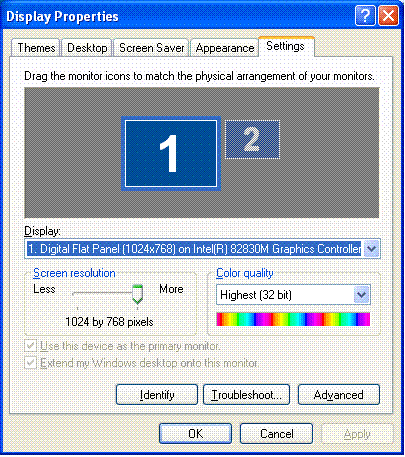 |
|
New member Username: XerxescamaPost Number: 1 Registered: Jul-06 | Guys, I thought of this whole TV issue in 1997 and found a way to solve this seamlessly. There is a $50/- device on the market, that is normally located right next to the high end video cards. This allows you to take an input in composite, S-Video, etc. and offers output in S-Video, co-ax, etc. Make sure you buy one that has a USB output! Now, simply connect your input source at one end, plug the USB into your laptop (after installing all the software, of course) and you should be good to go. I was watching TV and Videos on my laptop in '97 before machines could handle playbacks at 30fps. This device handled buffering and resovled that issue as well, so even if you have a slow laptop, you'll be ok. (I like to use my obsolete hardware for fun stuff!) Now, you get even better stuff in the market - check out: http://sewelldirect.com/USBVideoCaptureAdapter.asp?adpath=/Google/Other%20Produc ts%20III/USB%202.0%20Video%20Capture%20Adapter&keywords=usb%20video%20connector& match=1&search=search&gclid=CP6dsICUhYYCFR8aVAodXWE8ig . This should answer 90% of the questions above. Now, if you want to go the other way laptop -> TV / Projector, etc. , you need to buy a device that takes a VGA input and converts it into a composite / co-ax for your TV AND don't forget the sound! For sound you need a good Y cable that takes a single input (male) and converts it to dual output (also male) - Monster Corp. offers fantastic cables - get it at a Best Buy or circuit city. As far as the VGA -> <some> cable goes, check out http://www.nextag.com/vga-to-composite/search-html That should help you out. |
|
New member Username: ShaoPost Number: 1 Registered: Jul-06 | i have connected my laptop to the tv, with the s-video cable. but the image turns out black and white, and theres no sound. can anyone help? i need color and sound!! |
|
Gold Member Username: IlluminatorUSA Post Number: 3715 Registered: Apr-05 | Read the above posts. |
|
New member Username: Finster63Richardson, TX United States Post Number: 1 Registered: Aug-06 | Solved. I had an s-video cable plugged into my older Dell Latitude and into my tv. My laptop has an ATI Mobility 128 AGP 2x (dell) card built into the motherboard. On boot up it would display on the tv for a few seconds, then disappear. Changing resolutions did nothings. FN + every F-key did nothing. I downloaded ATI Tray Tools: http://www.softpedia.com/get/Tweak/Video-Tweak/ATI-Tray-Tools.shtml If you load it and right-click on it in the tray, it will give you several menu choices. One is for DISPLAY, select it, look for the TV entry, click the On/Off button on the screen - success. I can plug and unplug the s-video and it comes in every time.... |
|
New member Username: Jacob22BridgetownBarbados Post Number: 1 Registered: Aug-06 | hi i have a ibm thinkpad im not sure which one it is and i have a s-video port and i want to kno if i can play a video game on it my xbox has a s-video adapter so i want to kno if i could hook it up on it and play on the laptop without a tv or tv card |
|
Gold Member Username: IlluminatorUSA Post Number: 4266 Registered: Apr-05 | You cannot use your laptop as a TV screen unless it has a video input, otherwise you will need to purchase a PCMIA video capture card |
|
New member Username: Happy2006Post Number: 1 Registered: Aug-06 | hi to all could anybody please let me know the procedure for laptop to TV display by s-cable. Recently i bought one s-vedio cable but i couldn't get the procedure. Thanks in advance |
|
Gold Member Username: IlluminatorUSA Post Number: 4429 Registered: Apr-05 | Don't be ignorant, 'happy2006' and READ THE THREAD |
|
New member Username: Uetian01Post Number: 1 Registered: Oct-06 | hello! i have sucessfully connected my laptop to tv and i can see the extended desktop on the tv (using the s-video cable 4 pin connector on both sides), but when i try to make the tv as primary monitor, it simply gets dettached, can any body help? mohsin.re@gmail.com thanks |
|
New member Username: Ronaldosoccer1Post Number: 1 Registered: Oct-06 | I have an s video port on my laptop and I have a svideo to RCA connector. Do Do need any other software to show video because I see nothing. |
|
Bronze Member Username: RekmanCANADA Post Number: 88 Registered: Jun-06 | Jexxxx see how you can help me Please please please, just bought a New Laptop , We install a Wireless DLink Cd Rom and Router etccc.... Now we are trying to get the Internet Connection, But its not Working. Wireless DLink not giving connection to Internet We have a User Guide Gateway Edition for the Laptop . Please Help me by guiding to get the Wireles Connection . Thanks You |
|
New member Username: Lionface212Post Number: 1 Registered: Nov-06 | I have a sony vaio laptop, i have an s-video input and i have a playstation 2, so how do i connect my playstation 2 to my laptop so i can use my laptop as a screen to use whilst playing my playstation. |
|
New member Username: XerxescamaPost Number: 2 Registered: Jul-06 | AK, You know a lot of questions in this thread are about getting different types of connectors. http://www.cablestogo.com/product.asp?cat_id=102&sku=13058 may be the product you are looking for. Now on your Vaio, make sure you turn on your TV / input functionality and then you may have to scan / setup the channels again. In general, guys, read the thread and then use a seach engine to find "connector <source> <target>" where <source> is the kind of output your vcr, PS/2, XBox has and <target> is the kind of input your PC has (or vice versa if you want to export to an external monitor)>. BTW, if these solutions work for you, please post a 3 liner: problem, solution & link (mentioning the name of the poster who helped, wouldn't hurt either ;-) so that others don't have to rediscover the same solution. Have fun! |
|
New member Username: XerxescamaPost Number: 3 Registered: Jul-06 | alan perez, RTFT (Read the freindly thread) You cannot use an input device as an output device. I have written a solution to this problem earlier, along with links to where you can buy this stuff. |
|
New member Username: Lionface212Post Number: 2 Registered: Nov-06 | thanks a lot Xerxes, I have bought that and a wire connecting that adapter to my laptop. I was recommended another adapter for the 2 playstation audio cables (red and white) to go into so i could put them into my headphone jack. But do u know how i can make the playstation 2 work from there? do i have to alter any settings? or tune the tv? i put it on AV mode on the TV but it didnt pick up anything! Sorry to be a pain, thanks. If you help me with this i wil post my gratitude on every forum Lionface212 |
|
New member Username: XerxescamaPost Number: 4 Registered: Jul-06 | No problem AK. You need to tune your TV to search for all the input channels, I'm not sure which channel the PS/2 comes up on. The red & white cable is an audio cable, so if the PS/2 has a red and white output, and the Viao only has one input then you need to get a 2 to 1 cable that converges the output of the PS/2. Now, tune your AV card - there will be some "autoscan" functionality. Use that to find the available inputs after connecting your PS/2 and turning it on. Let me know how it turns out. |
|
New member Username: MahendrarpPost Number: 1 Registered: Nov-06 | Dear all, I have Dell Inspiron 600m notebook. I have problem connecting laptop(s-video port) to TV. I have followed & tried ur suggestions, but in vain. Cable seems to be fine. When i did all the settings, i was able to hear audio on TV, but no Video. After pressing Fn+F8, The screen on laptop goes blank for 2 secs & comes back. At the same time, Screen on TV shows some Colour strips but cannot see Picture on TV. I tried to change Pixel, & also restart but doesn't work. In properties i can see TV connected. Please suggest. |
|
New member Username: XerxescamaPost Number: 5 Registered: Jul-06 | Mahendra, Lower the resolution on your laptop to 800x600 or lower and try. Play a dvd in full screen mode - see if you get the picture on your tv screen. Don't configure your TV as a second monitor (so do not select the "extend my desktop" checkbox offered by the settings). You can try lowering the refresh rate of the card as well. Different Monitors / TVs support different refresh rates. See if that works for you. |
|
New member Username: AlwaysfunkPost Number: 1 Registered: Dec-06 | i've sony vaio laptop and it has s-video out out but i can't connect it into my tv screen .can anybody help me..please mail me |
|
New member Username: ShantanuuPost Number: 1 Registered: Jan-07 | hi, I don't want to antagonize anyone here...but here's the problem I'm facing with s-video connection * I've connected my dell 700m (intel display driver) to TVs previously with no problem at all. * the driver showed me the tv selection radio button...rest worked flawlessly... * last couple of months, I've been trying to connect laptop to 2 tvs but the tv selection radio button just don't show up !!! I've tried several things already : - reinstall of driver - switching off tv, notebook, then switch on - lowering the resolution It's so frustrating...I just can' get the laptop to pass signal to the tv, well, I don't even see the selection on my driver interface. What's going on ? shantanu at gmail dot com |
|
New member Username: RuddigerPost Number: 1 Registered: Feb-07 | i have a packard bell easynote r4 laptop and have just got a s-video to scart cable, when i connect it and start my computer nothing happens! when i press fn and f11 the display on my laptop goes blackk but still nothing on my tv, i have tried to adjust the display settings but still nothing.......... please help |
|
New member Username: NinadparkhiPost Number: 1 Registered: Apr-07 | Hi guys, can anyone help me here.... I am able to connect my laptop to TV using S-Video and audio through RCA cables. This works great. But when someone is watching programs on TV (from laptop) I want to continue using laptop as we normally do. I mean whatever else I am doing on laptop should not come on TV except s-video input that I have given to TV. I have seen this at my friends place where Winamp/ Real Player or Windows media player's output is given to TV but he continues to surf internet and it doesn't appear on TV. Problem is he dont know how it's done, I mean he is not aware if there is any setting in TV or laptop :-( If any of you guys knows about it, it would be great help to watch laptop videos on TV but at the same time continue using laptop in normal way without disturbing someone who is watching TV Thanks, |
|
New member Username: CurtisbobbiePost Number: 8 Registered: May-06 | Hi Ninad, May be you can accomplish your goal, if you have sufficient computer, video, sound card, etc. Basically you'll have to play with the "display" "settings" in "control panel" if your using a "windows" OS. Under display click "settings"- click "Advanced" - click "displays." You'll see, if yours is like mine, 3 displays: Monitor, Panel, TV. I really don't remember from here; but if you'll use the "help" searching for display, desk top, and TV, you will find all the instructions you'll need to set up multiple viewing screens or viewing the desk top on multiple monitors. Again, from my limited experience, some computers are not of a high enough quality to do both at one time. Don't be afraid to try screen settings, just don't confirm them until you get what you want. Most computers change the setting for about a minute and then revert to factory defalts if it is not confirmed. Also, you may have to switch between displays by pressing "control and F5" or by pressing "control and the fixed funcion key that has the picture of a display on it. Your system may already be set up to do what you want by pressing these buttons to cycle through the display modes. My computer has three modes: Panel only, S-video only, or both. I have in the past split my desktop over two monitors in the settings and then opened a video playing window on one monitor which was attached via the s-video. It worked for me, but at times the video would degrade as I used the processor for other things. There may be another way to accopmlish it, but this will work if your system is advanced enough to allow it. Dig in and see what you can do. God Bless. |
|
New member Username: AeoeddyPost Number: 1 Registered: May-07 | from my limited experience, some computers are not of a high enough quality to do both at one time. Don't be afraid to try screen settings, just don't confirm them until you get what you want. |
|
New member Username: Brotha_davidPost Number: 1 Registered: Jun-07 | hi i have a question that almost every one is asking, and i think i have a solution. if your computer has an S-Video out cable (like my HP DV8000), i highly doubt that u can use it as an input device. But i was looking on google tonight and i think i found a sollution. its called a (drum roll please) 'video capture device.' it isnt really disigned for TV to laptop, but i guess it works, i personally dont have it, yet, but i might try it. I wanted to hook up my XBOX 360 up to my 17 inch monitor and use it as my screen, cause thats cheaper than buying an HD screen. But i heard that it has major lag. (4 u guys who dont know what that is, its a delay time, like if ur racing, and u turn left, then u see the car turn left like 1 second later, which doesnt work well for gaming) So lag wont work 4 me, but i dont know if there is a diffent product that works the same, of what. i know some of u are smarter than me at this stuff, so if u know what i need i would appreciate it a lot. THX  |
|
New member Username: CurtisbobbiePost Number: 9 Registered: May-06 | Hey David, to my knowledge there is not a practicle real time video input solution to bring a game or t.v. onto a computor monitor. A capture device might be ok for slow paced games and it MIGHT work ok if you have a Exteemly high speed computer. My ConvertX capture device with any of the preloaded Micro-soft software, Sonic software, or Ulead Software has a couple of second delay. I use a Pentimum 4, 3.2ghz processor with half a gig of ram. Not the top of the line, but average or better. My advice is not to try a capture device unless you have other use for it, especially if you system is not much faster than mine. |
|
New member Username: Jessica_moore86Post Number: 1 Registered: Jun-07 | hi guys... i need some help with hooking up my laptop to my plasma TV, i have a s-video on my computer and tv but when i plug it in nothing happend, my tv says no signal and nothing come up on my comp. I checked to see if i had to change the montior or nething in my control panel, and there is nothign there for me to change. Please some one help. Do i need softwear or what?? |
|
Gold Member Username: The_image_dynamicSan Diego Post Number: 1719 Registered: Dec-06 | In order to be able to see the movie playing on your TV you have to select the TV in the "Device settings". The movie will not play on both the laptop's screen and the TV under dual or clone view. Here's what you have to do under Win XP: Go to Start; Control Panel; Appearance and Themes; Display; Settings; Advanced; select the "tab" for your Graphics card; select "Device Settings"; select TV. Before you start, change the display settings to 800 x 600; you need to do this since most TVs will not support higher resolution settings - this is ok, however, since you do not need higher resolution to watch your DVDs or to view your monitor's display on your TV. Also, make sure all of the hardware is connected before turning on the computer; you may have trouble getting the video card to recognize the TV as the second monitor. |
|
New member Username: CurtisbobbiePost Number: 10 Registered: May-06 | Hi Jessica, Brad seems to have the idea right. However, you may be able to switch between displays by pressing "fn (function) and F5" or by pressing "fn (function) and the fixed funcion key that has the picture of a display on it." Your system may already be set up to do what you want by pressing these buttons to cycle through the display modes. You'll still probably want to run Audio out to your TV speakers. Some Laptops have an audio out others just have the head phone output, which most likely will work fine. P.S. To those that read my last post, my appoligies for using the wrong nomenclature for the function key, which I had previously called the control key. |
|
New member Username: MahendrarpPost Number: 3 Registered: Nov-06 | hi, For Laptop to TV, use s-video cables at both the ends connected to s- video port. connect seperate audio cable. make setting accordingly.it works |
|
New member Username: AnirbankPost Number: 1 Registered: Jun-07 | Hi, "Only Wallpaper and No ICON or Window display on TV" I recently bought an S video Cord and also RCA Audio cables along with it. I did the testing initially on my friends laptop to connect to the TV. It worked. I have a compaq presario 2500/WindowsXP/ATI Radeon 345M Graphics card.I did all what is advised in the thread, such as: a. Setup of connection of cables b. Extend the Display of the laptop tp TV c. Using Settings > Display > Advanced > Set TV specifications: Region: India Format : PAL-B d. Changed resolution to 800 * 600 and all possible options. But all I can see is the WALLPAPER(color is maintained) of the laptop every time.None of the ICONS or the Windows TASKBAR is visible on the screen. I read some of the above threads, where this issue is mentioned but no fixes yet. Please Please someone help me see my laptop screen reproduced on TV!!!  |
|
New member Username: AnirbankPost Number: 2 Registered: Jun-07 | Hi, "Only Wallpaper and No ICON or Window display on TV on connection of laptop to TV by S-video" I recently bought an S video Cord and also RCA Audio cables along with it. I did the testing initially on my friends laptop to connect to the TV. It worked. I have a compaq presario 2500/WindowsXP/ATI Radeon 345M Graphics card.I did all what is advised in the thread, such as: a. Setup of connection of cables b. Extend the Display of the laptop tp TV c. Using Settings > Display > Advanced > Set TV specifications: Region: India Format : PAL-B d. Changed resolution to 800 * 600 and all possible options. But all I can see is the WALLPAPER(color is maintained) of the laptop every time.None of the ICONS or the Windows TASKBAR is visible on the screen. On pressing Fn+ F5 the TV screen just flickers and on the laptop screen, I do not get an option to choose between LAPTOP,TV+LAPTOP,TV. I read some of the above threads, where this issue is mentioned but no fixes yet. Please Please someone help me see my laptop screen reproduced on TV!!! |
|
New member Username: Barrett63Post Number: 1 Registered: Sep-07 | Glad PSP Video Converter is a powerful PSP MPEG4 video converter/PSP burner with fast working speed in burning movie to PSP and downloading movie to PSP. You can get this PSP MPEG4 video converter at a very competitive price. |
|
New member Username: Realgeorge39Post Number: 1 Registered: Sep-07 | MovieTaxi Zune Video Converter is an extremely easy to use 1-Click solution to convert many more to Zune in high quality at high speed.With MovieTaxi you can easily watch all your videos on your Zune. |
|
New member Username: TnmkBangalore, Karnataka India Post Number: 1 Registered: May-07 | Hi I have Acer laptop Aspire 5560 with Svideo/TVout port and ATI x1600 radeon graphics card, I have connectd 7pin Svideo to 3 RCA cable to my 32"LCD TV, I have set the display setting to clone my laptop display, I have tried all the options, and set display to 800x600, when i try Fn+5 in my laptop screen i can see the three Icons, only laptop, laptop+TV and TV , even after selecting the laptop+Tv option and thorugh my tv remote set to AV1 port. It's not able to display on the TV. I have read many articles on this and followed, seems to be every thing OK from laptop side procedure wise, but TV screen is still blank. says no signal , is there any issues with the 7pin to 3RCA cables, how can we confirm there is no issues with the cable?. is there any way to check the 7pin Svideo to 3RCA cable? |
|
New member Username: BunnytvPost Number: 4 Registered: Oct-07 | any 1 got a link to buy a vga to rgb box that be beter than svideo |
|
New member Username: NikkPost Number: 1 Registered: Oct-07 | ??? |
|
New member Username: BunnytvPost Number: 5 Registered: Oct-07 | RED GREEN BLUecable or call rgb |
|
New member Username: Daniel_hazenPost Number: 1 Registered: Nov-07 | I'm trying to play DVDs on my laptop and watch them on my TV. I have a Dell Latitude C600 laptop with WindowsXP Home and an ATI Mobility 128 AGP 2x (DELL) video card. I tried following the instructions on website http://www.svideo.com/compaq1700.html which have also been set forth on this forum and those didn't work. I think the S-video to composite cable is working and properly plugged in as when I start up my computer with the cable installed and the TV on, I get a few seconds of the Windows startup screen and the laptop mouse arrow can be moved on the TV screen. Then the TV screen goes blank/black. When I go to Display Properties/Settings, my screen doesn't show a choice between monitors 1 and 2 ... it only shows one monitor. Below it reads "Display: [Multiple Monitors] on ATI Mobility 128 AGP 2x (DELL)". When I go to the Advanced tab page, a little window at the top shows two Default Monitors, both apparently the same. It was recommended I enter Fn + F8 from my laptop keyboard, I did this many times. No change except the TV screen flashes some lines and the laptop display flickers. Another post on this forum suggested I install ATI Tray Tools and go to Settings/Display and enable the TV Mode that way. I did so but no joy. Display 1 shows the laptop monitor as Primary and the power button is red. To the right of that Display Limits shows (No DDC!) and below that indicates Max HResolution 1024, Max VResolution 768 and Max Refresh 60. The TV Out indicator below indicates those same Display Limit settings and it shows the S-video cable as connected when it is connected and Not Connected when it is not. When I click ON/OFF, the red power button comes on and TV Mode shows Clone, but when I click on APPLY, the screen goes blank. When it comes back up, the original (power off) settings are back again. I think that's all the information I have although I'll try to supply more if anyone needs more. Thanks in advance for your help. Daniel! |
|
New member Username: BunnytvPost Number: 6 Registered: Oct-07 | will this work on a laptop |
|
New member Username: Urs_vinzMumbai, MH India Post Number: 1 Registered: Nov-07 | i have a ibm r50e laptop which doesnt have S video, how do i take my dispaly onto the TV.?? |
|
New member Username: Tina2692Post Number: 2 Registered: Jan-08 | i have a dell xps 1530. and recently i've been hooking it up to my tv. via S-Vid. this has worked fabulously. except for the fact that the image on the tv was copied onto my computer. now my laptop displays all images 10X bigger. even though the S-vid cable is unplugged. HELP! |
|
Platinum Member Username: Project6Post Number: 14413 Registered: Dec-03 | Right click on the desktop, then properties. You should be able to go from there. |
|
New member Username: Tina2692Post Number: 3 Registered: Jan-08 | i tried that. didnt work. windows vista. is complex.. |
|
Platinum Member Username: Project6Post Number: 14418 Registered: Dec-03 | You are right on that one. |
|
New member Username: Jm2k3Post Number: 1 Registered: Jan-08 | i know many people have asked this question but i dont see a straight forward answer. please help me i have an s-video to rca cable hooked from my hp laptop to my tv but the picture is coming up in black and white. how do i fix this? please dont get mad that this question is on here a bunch just help if possible. jm2k3@aol.com for answers thanks |
|
New member Username: DougncarryPost Number: 1 Registered: Sep-08 | Ok for the people that hook up s video of laptop to s video of tv and they only get picture of their wallpaper! Scroll your mouse over to the right side of your screen on your laptop to the point it goes off the screen then look up to your tv and you will notice that your pointer is there. Right click once on your tv and you will notice all options are how you want to configure your display it is really self explanatory from there. trust me this was the point I said wow that was easy. |
|
New member Username: MsafferedAlaskaUnited States Post Number: 2 Registered: Dec-09 | I have also question from my side.....regarding to my laptop batteries...... in the earlier it was given up 3 hrs backup time, now at this time only up 1.5 hr something, and my laptop also not that much old, it's just only 1 and half year old... so should it possible that battery comes down in this much less time period ? |
|
New member Username: XerxescamaPost Number: 6 Registered: Jul-06 | Battries require constant care. You have to drain them completely and then re-charge them, to extend their life and charge. Allow your battery to drain completely, re-charge it to 100%. Repeat that regularly and you'll get the max out of your battery. Don't expect them to last forever, their performance will degrade over time and eventually you'll need to replace it. Even when I have power available, I allow my battery to drain (by disconnecting the adapter) and then re-charge to full capacity. Hope this helps. |
|
New member Username: WaquarPost Number: 1 Registered: Jan-10 | Hello Dear, i have a Toshiba A200 Satellelite Series Laptop and i want to see laptop display on my TV . but when i connect my media cable with S-Vedio . nothing has displayed . please help me out. |
|
Silver Member Username: Ieee488Post Number: 242 Registered: Dec-07 | You need set the laptop to display to the external monitor. |
|
New member Username: Dj_livesPost Number: 8 Registered: Jan-10 | http://www.svideo.com/displayvideo.html |
|
New member Username: Dj_livesPost Number: 9 Registered: Jan-10 | http://www.svideo.com/displayvideo.html |
|
New member Username: Dell_laptop_guyPost Number: 1 Registered: Feb-10 | Hey, I have a Dell notebook I bought the aux adapter for my laptop and the s video cord but i still cant get it to work. Does anybody know the problem? |
|
Silver Member Username: Ieee488Post Number: 276 Registered: Dec-07 | What aux adapter are you talking about????? |
|
New member Username: Dell_laptop_guyPost Number: 2 Registered: Feb-10 | i have the adapter with the red white and yellow and s video input cables and it connects to my laptop |
|
Silver Member Username: Ieee488Post Number: 277 Registered: Dec-07 | the yellow+red+white is composite video is NOT the compatible with s-video there are some laptops which output composite video signals on some of the pins of a 7-pin laptop s-video connector; but not many the people selling these "adapters" are basically counting on the ignorance of buyers like you who buy their products you will need a converter box and pay $50-$75 |
|
New member Username: Dell_laptop_guyPost Number: 3 Registered: Feb-10 | it had an s video cord attachment also.... basically I have all the cords. When i hook the red white and yellow cords and the s video cord into my tv nothing happens. |
|
Silver Member Username: Ieee488Post Number: 278 Registered: Dec-07 | the yellow+red+white is composite video is NOT the compatible with s-video there are some laptops which output composite video signals on some of the pins of a 7-pin laptop s-video connector; but not many the people selling these "adapters" are basically counting on the ignorance of buyers like you who buy their products all the cables and connectors are NOT going to do you any good you will need a converter box and pay $50-$75 |
|
Gold Member Username: DoreenakadjVolunteer MOD Canada Post Number: 3740 Registered: Dec-06 | http://www.svideo.com/displayvideo.html read!!!! |
|
Silver Member Username: Ieee488Post Number: 279 Registered: Dec-07 | Doreen, You clearly are not understanding that he is using a s-video to composite video cable. You can tell him to read that webpage all you want, but it is irrelevant info since he is not connecting s-video to s-video. |
|
Gold Member Username: DoreenakadjVolunteer MOD Canada Post Number: 3752 Registered: Dec-06 | sorry i meant this in regards too WaquarNew member Username: Waquar Post Number: 1 Registered: Jan-10 Posted on Monday, January 18, 2010 - 11:48 pm: -------------------------------------------------------------------------------- Hello Dear, i have a Toshiba A200 Satellelite Series Laptop and i want to see laptop display on my TV . but when i connect my media cable with S-Vedio . nothing has displayed . please help me out. |